

Why Motion Control Is the Skill That Separates “Cool Demo” From “Real Results”
Motion control is the difference between “I generated a clip” and “I directed a clip.” It lets you take a still image (a person, character, or product) and apply motion from a reference video so the result moves the way you intended.
AI video tools are improving fast, but without control they can still behave like a talented intern who forgot to read the brief. You asked for “cinematic product ad,” and it delivered “haunted shampoo bottle drifting into the ocean.” It is impressive, but also deeply confusing.
What you’ll get from this guide
- A clear walkthrough of how Kling 3.0 motion control works in real life
- The “gotchas” Chris Luck warns about that most tutorials ignore
- A simple, repeatable workflow you can use for content or client work
- Prompting strategies that keep you out of the “why is it melting” zone
Also, you will feel smarter by the end, which is nice. Your browser will still have 42 tabs open, but at least now 7 of them will be useful.
What Kling 3.0 Is (In Human Terms)
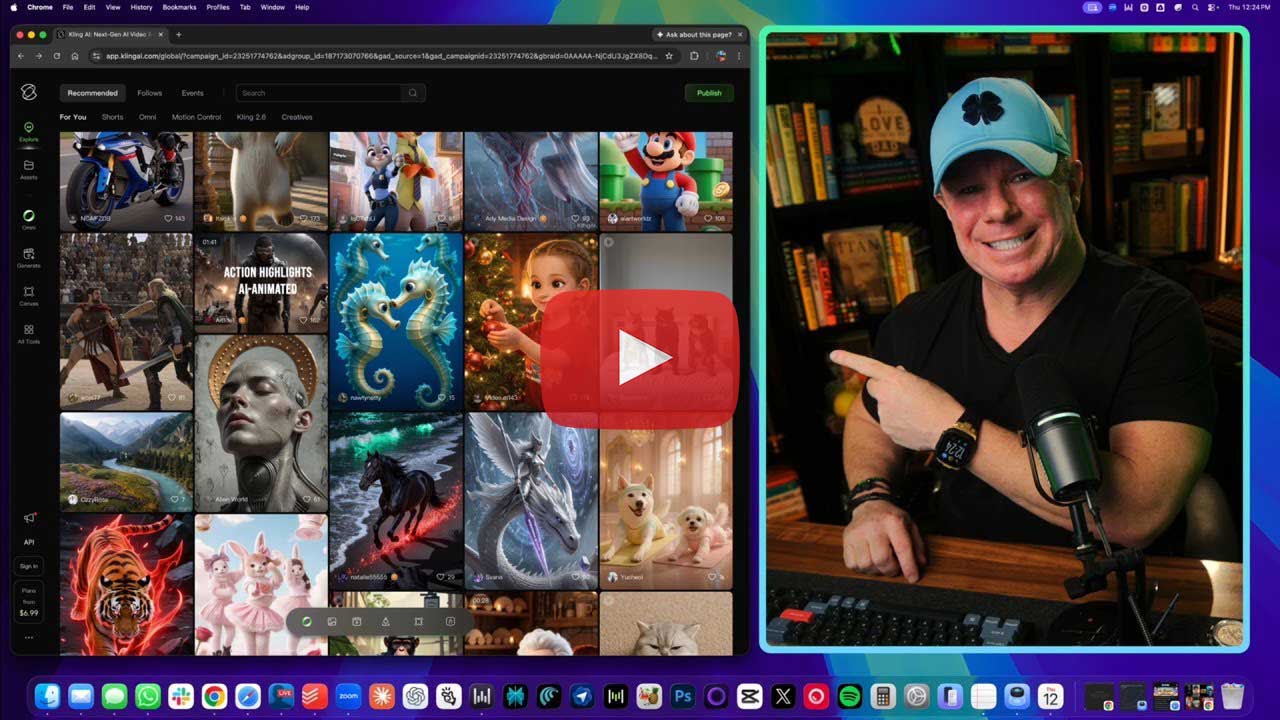
Kling 3.0 is an AI video generator that can create video from text or bring images to life. The spotlight feature in Chris Luck’s tutorial is image-to-video motion control, where you upload an image and “borrow” movement from another clip.
Think of it like karaoke, but for motion. Your image is the singer, the reference clip is the melody, and the tool tries very hard not to embarrass you in front of your audience.
What Kling 3.0 is known for in this tutorial
- High-end video quality compared to many tools people used before
- Built-in audio capabilities in the broader Kling 3.0 ecosystem
- Multi-shot “director-style” scene planning options (depending on the interface)
- Strong identity consistency features (often described as “identity lock”)
AI video has come a long way. Two years ago, most tools could not animate a face without making it look like it was remembering an awkward middle school moment.
The Part Most People Skip: Why Using Kling Directly Can Be Risky

Chris spends real time on this because it matters, especially if you are doing client work or building a business.
Privacy and public visibility concerns
A major warning is that free generations can show up publicly, which can expose prompts and outputs. If you are testing marketing angles or building client ads, you probably do not want your work displayed like a community bulletin board at a laundromat.
Yes, it is convenient for “inspiration.” It is less convenient when you realize your “secret campaign concept” is now someone else’s Tuesday.
Credits, failures, and support frustration
Chris also highlights issues users report such as credits expiring quickly, failed renders consuming credits, and support being inconsistent. Nothing bonds humans together like watching a render fail at 99% and then realizing it still charged you anyway.
At that point, you do not need a video tool. You need a long walk, a snack, and maybe a therapist who specializes in progress bars.
Moderation surprises
Chris notes moderation can be strict or unpredictable, and that rules may reflect the platform’s policies. If your content includes certain historical topics, you might find yourself getting flagged while a dancing hot dog somehow passes quality control.
The Smarter Setup Chris Recommends: Run Kling 3.0 Through Higsfield

Instead of using Kling directly, Chris recommends using Higsfield as the access layer. The idea is simple: use the same core model with a workflow that feels cleaner, more controllable, and more business-friendly.
It is like ordering the same food from a better restaurant. Same dish, less regret.
Why Higsfield improves the experience
- Multi-shot scene planning so you can storyboard before rendering
- Large preset libraries for camera control and cinematic effects
- “Elements” you can save (characters or products) for consistency
- Credit-based subscriptions that let you use multiple models in one place
- Extra editing tools in certain modes (relighting, object swap, reframing, cleanup)
If you have ever paid for five different AI tools and still couldn’t find the button that does the one thing you need, this “all-in-one” approach will feel like a warm hug.
Who benefits most from this approach
- Freelancers who need reliability and privacy
- Small businesses who need repeatable ad creation
- Creators who want to experiment across multiple models without juggling logins
- Anyone who prefers “one dashboard” over “thirteen dashboards and a prayer”
Motion Control 101: The Beginner Workflow That Actually Works
Here is the core workflow Chris demonstrates, simplified into steps you can follow without pausing a video 47 times.
This is also the part where you will feel like a director. Until the first render comes back and your character has one extra elbow. That is normal. Welcome to the future.
Step 1: Open Kling 3.0 inside Higsfield and choose Motion Control
Navigate to video, pick Kling 3.0, then select motion control. This mode is specifically designed for “apply motion from a reference clip.”
If you accidentally choose a different mode, do not panic. Just pretend it was an experiment. That is what artists do.
Step 2: Upload your start frame
Your start frame is the image you want to animate:
- a person
- a character
- a product
- any still scene you want to bring to life
If you upload yourself, prepare for the AI to generate the most confident version of you. It might look like you, but it will have the posture of someone who drinks green juice willingly.
Step 3: Choose motion to copy
You have two main options:
- Use a curated motion clip from the library
- Upload your own motion reference clip
This is the “dance teacher” part. Your start frame is the student, and the motion reference is the choreography.
Step 4: Decide where the background comes from
Chris calls out a powerful control: you can choose whether the background is taken from:
- the character image, or
- the motion video
This is a big deal. One setting gives you “me dancing in my office.” The other gives you “me dancing in someone else’s music video.” Choose wisely, unless your brand strategy is “surprise everyone at all times.”
Step 5: Pick quality settings and render
Start with simpler settings. Render. Review. Adjust. Repeat.
Your first output is often the “first pancake.” It is edible, but you are not posting it on Instagram.
Use Presets to Get Pro Results Faster (Without Becoming a Prompt Poet)
Higsfield includes lots of presets for camera movement, framing, and effects. Chris recommends exploring them because they give you direction instantly.
Presets are like having a director of photography in your pocket. A tiny one. A helpful one. One that does not demand a third oat milk latte.
When presets are the best choice
- When you want clean results quickly
- When you are learning and want to see what “good” looks like
- When you need a strong baseline before you start fine-tuning prompts
When to go manual
- When you need a specific shot plan for an ad
- When you want consistent camera language across multiple clips
- When you are matching a brand look or storyboard
If you go full manual immediately, you might spend an hour writing a prompt and still get “cinematic blur creature.” The creature is always cinematic. It is just never what you asked for.
Advanced Prompting: How to Get “Director-Level” Control Without Writing a Novel
Chris shows a practical, repeatable approach:
- Ask ChatGPT or Claude for a strong prompt
- Respect the character limit (he demonstrates around a 2,000-character target)
- If it’s too long, ask the model to compress it
- Paste into the advanced prompt field and render
This is less “write poetry” and more “write a clear production brief.” Which is great, because nobody has time to be Shakespeare when a client is asking, “Can we get this by Friday?”
The best prompt structure for ads and high-quality scenes
- Role and goal: “You are a high-end commercial director…”
- What must remain consistent: logo placement, product texture, colors
- The setting: where it happens and what it should feel like
- Shot plan: push-in, arc, close-up, pullback
- Physics and realism: water beads, lighting behavior, micro-movements
- Constraints: avoid distortion, avoid unwanted changes
If you do this well, your prompts stop being wishes and start being instructions. That is the moment you go from “AI hobbyist” to “AI operator.”
A note on ChatGPT vs Claude, based on Chris’s preference
Chris suggests:
- ChatGPT is great for brainstorming and quick frameworks
- Claude can be stronger for polished writing and realistic detail
- Then you compress the result so it fits the tool’s limits
It is like having two assistants. One is your idea machine. The other is your editor who turns your messy thoughts into something that sounds expensive.
Character and Product Consistency: The Feature Everyone Has Been Waiting For
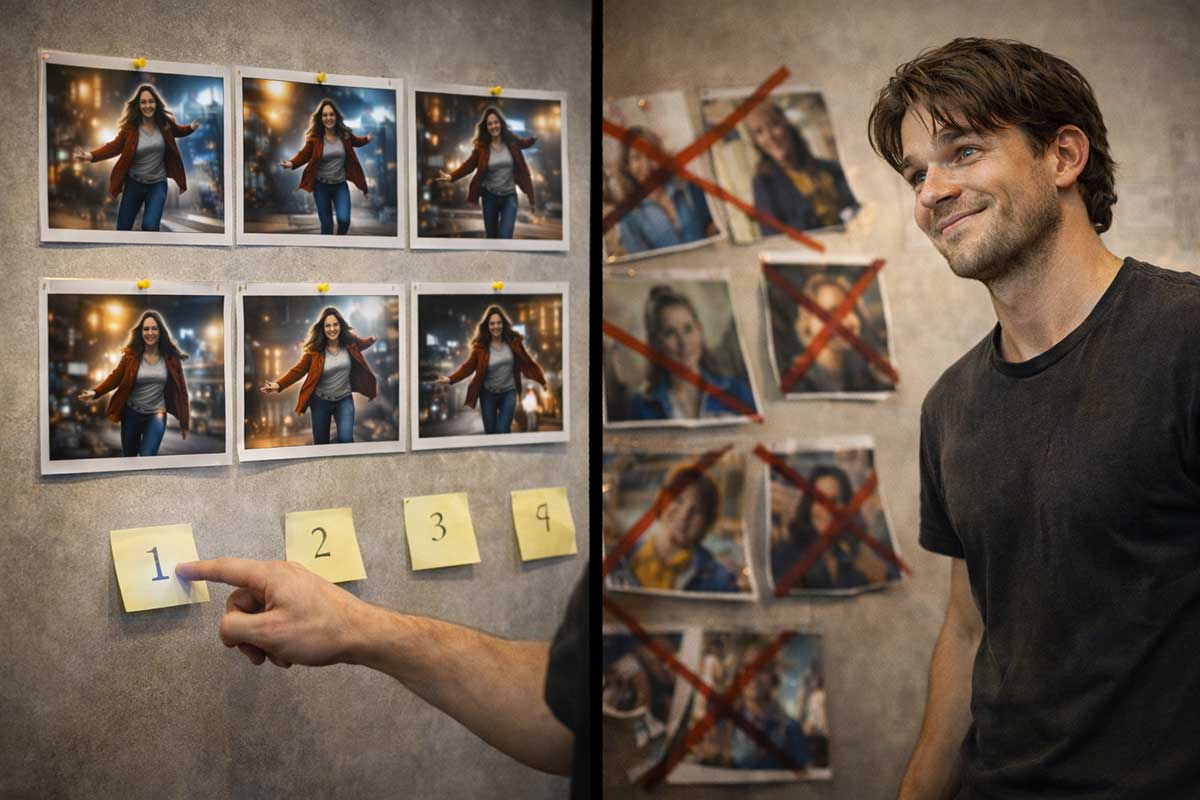
One of the biggest problems in AI video has been consistency. Faces change, outfits mutate, and a character can look like five different people across five clips.
Chris highlights identity consistency features and the idea of saving characters or assets so the same identity can persist across shots and angles. This is huge if you are building a series or doing client work.
Without consistency, your “brand spokesperson” becomes a rotating cast. It is like a sitcom that recasts the main character every episode and expects you not to notice.
Using “elements” for products and assets
Chris demonstrates uploading product images into an “elements” system, often needing multiple angles. Then you reference that saved element when prompting so the product remains stable across scenes.
Clients love this. You love this. Your revision count loves this most of all.
How People Are Making Money With Motion Control (Without Turning Into a Hustle Robot)

Chris frames this as part of an AI “gold rush.” Whether you agree with the metaphor or not, the demand is real: many people want AI video results without learning the tools.
That is where freelancers and creators have an advantage. You learn the workflow once, then you deliver outputs repeatedly.
And yes, you can get paid to play. Just do not call it “playing” when you invoice someone.
Service ideas that fit motion control perfectly
- Short product ads (5 to 15 seconds)
- UGC-style product clips (vertical, casual, authentic)
- B-roll creation for YouTubers
- Character-in-scene motion control replacements
- Quick ad concept variations for marketers
Portfolio strategy Chris points to: study what works, then improve it
Chris references the “Steal Like an Artist” idea:
- Find examples that sell
- Study pacing, framing, and look
- Recreate the concept with cleaner direction and realism
- Build a portfolio that looks like real advertising
Most people on marketplaces show mediocre samples. This is great news. Mediocre samples mean opportunity, because you can win by simply being the person who cares.
A simple way to learn faster
If you want a guided path through the tools, tutorials, and practical blueprints, check out AIville. It is a faster route than collecting random tips across the internet and hoping they form a complete skill.
Also, learning in a community saves you from the classic solo creator problem: spending three hours troubleshooting, then realizing the fix was one checkbox. The checkbox always wins.
Common Mistakes (So You Don’t Donate Your Time and Credits to the Void)

Mistakes are part of the process, but some mistakes are so common you can avoid them immediately.
Avoiding them feels amazing. Like finding out your phone was on mute before you left a ten-minute voicemail.
Mistake 1: Forgetting the background source setting
If you do not choose whether the background comes from the character image or the motion video, your result can look awkward or cut off.
This is how you end up half in an office and half in a nightclub, like a superhero whose power is poor compositing.
Mistake 2: Overprompting too early
New users often write prompts that look like a screenplay, a camera manual, and a motivational poster all in one.
Start simple. Get a baseline. Then add shot plans and realism details. AI responds better when you direct it calmly, not when you throw adjectives at it like confetti.
Mistake 3: Not planning shots
If you want ad-quality video, plan at least two or three shots:
- hero wide
- detail close-up
- payoff reveal
If you leave it to chance, you get “AI freestyle,” which is like letting a raccoon design your living room. Creative, bold, and somehow sticky.
Mini Blueprints You Can Copy and Use Today
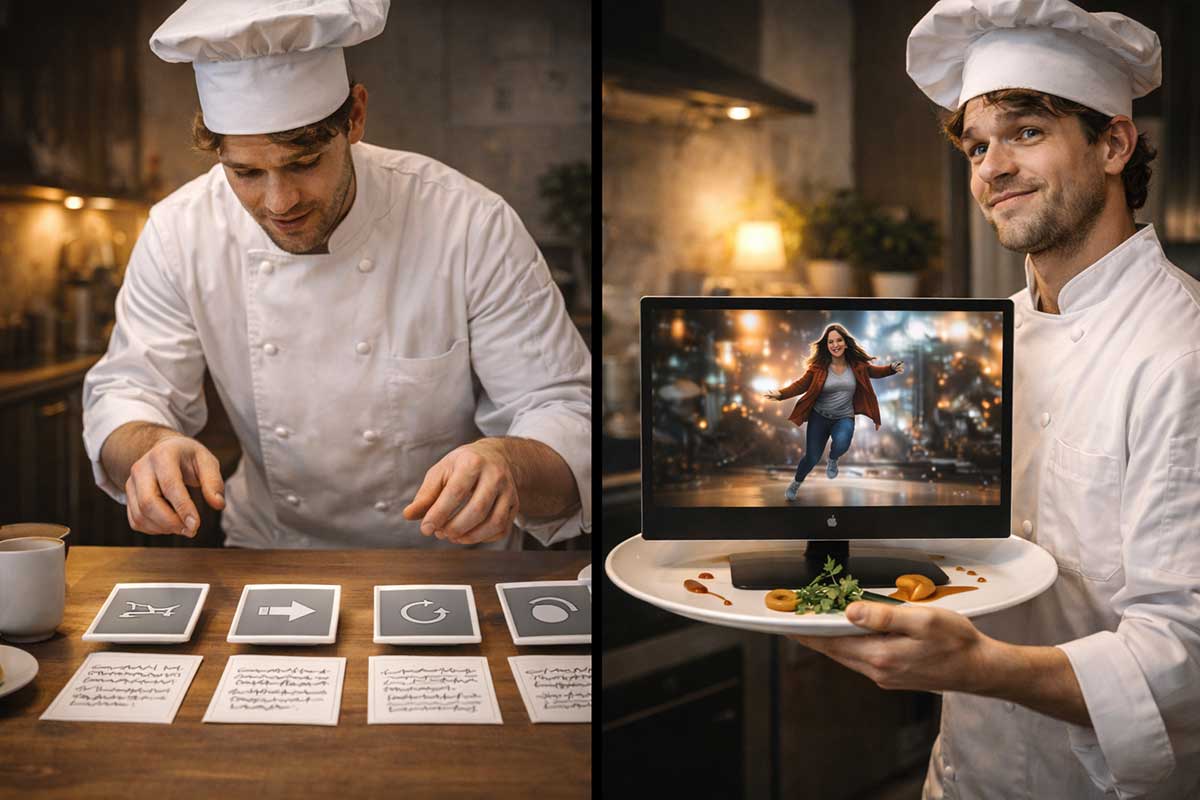
These are simple structures you can use immediately.
If you use them, you will save time. If you ignore them, you will still learn, but you will learn the way people learn in action movies: through unnecessary damage.
Blueprint 1: Beginner motion control clip
- Upload a character image
- Pick a motion clip from the library
- Choose background source intentionally
- Keep prompts minimal
- Render, review, adjust
Blueprint 2: Product ad with a shot plan
- Upload product images as an element (use multiple angles if possible)
- Prompt like a commercial director, not like a poet
- Define 3 to 4 shot beats
- Add realism details (lighting, physics, micro-movements)
- Render and refine
Blueprint 3: UGC-style vertical ad
- Aim for casual realism: handheld feel, imperfect lighting, natural posture
- Hook in the first 2 seconds
- Keep language simple and human
- Make the product stable by using elements when possible
UGC works because it looks like a person, not a production. If it looks too perfect, people scroll. Humans do not trust perfection. We do not even trust perfectly staged pancake photos anymore.
Final Verdict: Powerful Tool, Smarter Workflow, Better Results
Kling 3.0 motion control is one of the most exciting practical capabilities in AI video right now. It lets you direct movement instead of hoping for it, and it can produce content that looks shockingly close to real production when you apply the workflow correctly.
The biggest lesson from Chris Luck’s tutorial is not just how to animate an image. It is how to do it in a way that protects your work, keeps your process clean, and makes your outputs consistent enough to use professionally.
If you want the deeper tutorials, the prompt strategies, and the broader “how to actually use this for content or income” ecosystem, check out AIville. That is the cleanest home base for staying current without turning your brain into a folder full of bookmarks.
And yes, your first few renders might be weird. That is fine. The goal is not perfection on day one. The goal is control, consistency, and repeatability. Once you have those, you stop “trying AI video” and you start “using AI video.”
Leave a Reply