
If you type a lot, prompts, emails, Slack, Google Docs, code comments, customer support replies, then you already know the real enemy is not “writer’s block.”
It is the tiny friction of typing all day.
This is a whisper flow ai audio to text converter tutorial, and yes, it is about turning your voice into clean text. But more importantly, it is about saving your hands from becoming full-time employees.
Chris Luck calls Whisperflow his favorite AI tool because it converts messy human speech into polished writing inside basically any app. You talk like a normal person. It outputs like you had coffee, time, and perfect punctuation.
Let’s walk through what Whisperflow is, what makes it different from normal dictation, how to set it up the right way, and the fastest ways to get value in the first 30 minutes without turning your laptop into a space heater.
What is Whisperflow?
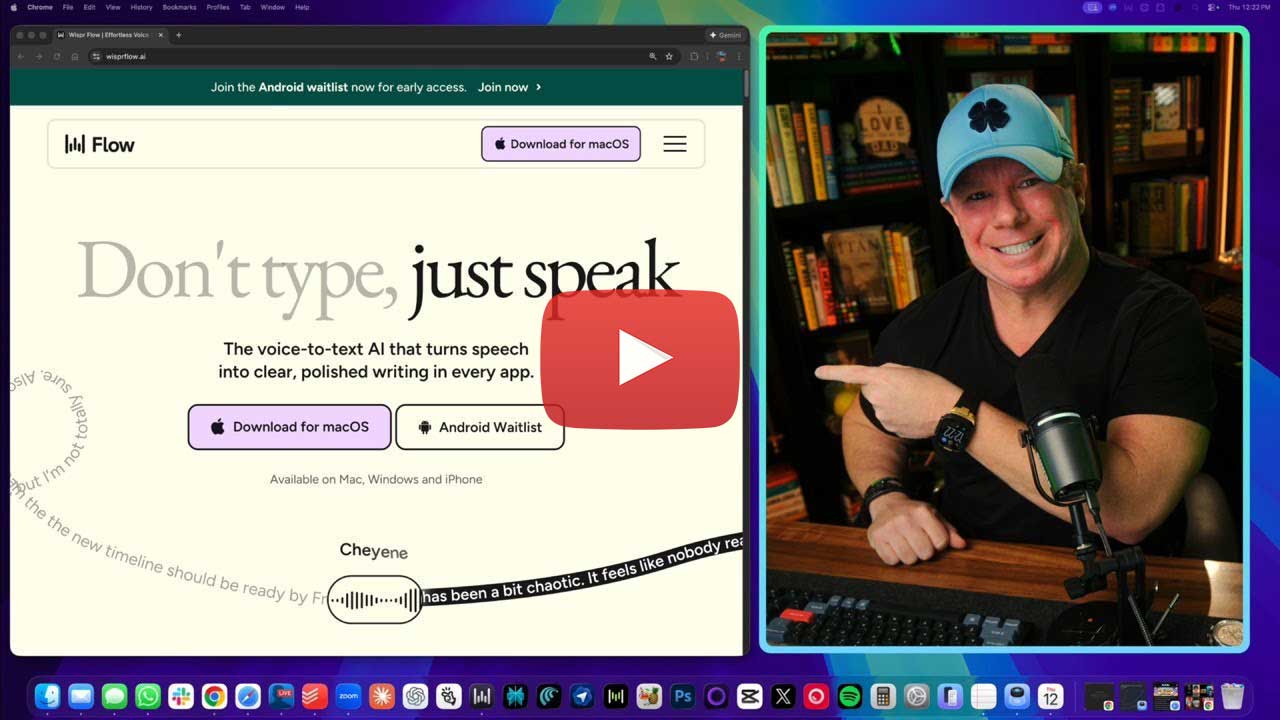
Whisperflow is a voice-to-text app you install on your computer (Mac or Windows) and phone (iPhone, Android waitlist). Once it’s running, you can dictate into almost any place you would normally type.
The point is not transcription. That’s the minimum requirement in 2026. If a tool only converts voice into a messy wall of text, congratulations, it reinvented the voicemail.
The point is that Whisperflow tries to convert what you say into what you meant:
- removes filler words like “um,” “uh,” and “let me restart that”
- adds punctuation automatically
- formats output based on where you’re typing (email vs chat vs document)
- learns your personal vocabulary and spellings over time
- includes a voice-powered rewrite mode (a Pro feature) for editing what you already wrote
It feels less like dictation and more like you hired a tiny editor who lives inside your keyboard. A polite one, too. The kind that doesn’t judge you for saying “actually wait” three times in a row.
And this is exactly why Chris Luck loves showing tools like this. Whisperflow is not just a cool feature demo. It’s the kind of everyday workflow upgrade that saves time across everything you do online. If you like tutorials that focus on real usage (not theory), it’s worth checking out AIville because Chris teaches these tools the same way he uses them: practical setup, real examples, and simple habits you can copy immediately.
If you end up trying Whisperflow, you’ll get even more out of it if you pair it with the kinds of workflow ideas people share inside AIville, like what to dictate, how to structure prompts with your voice, and which features are actually worth setting up first.
What makes Whisperflow different from standard dictation
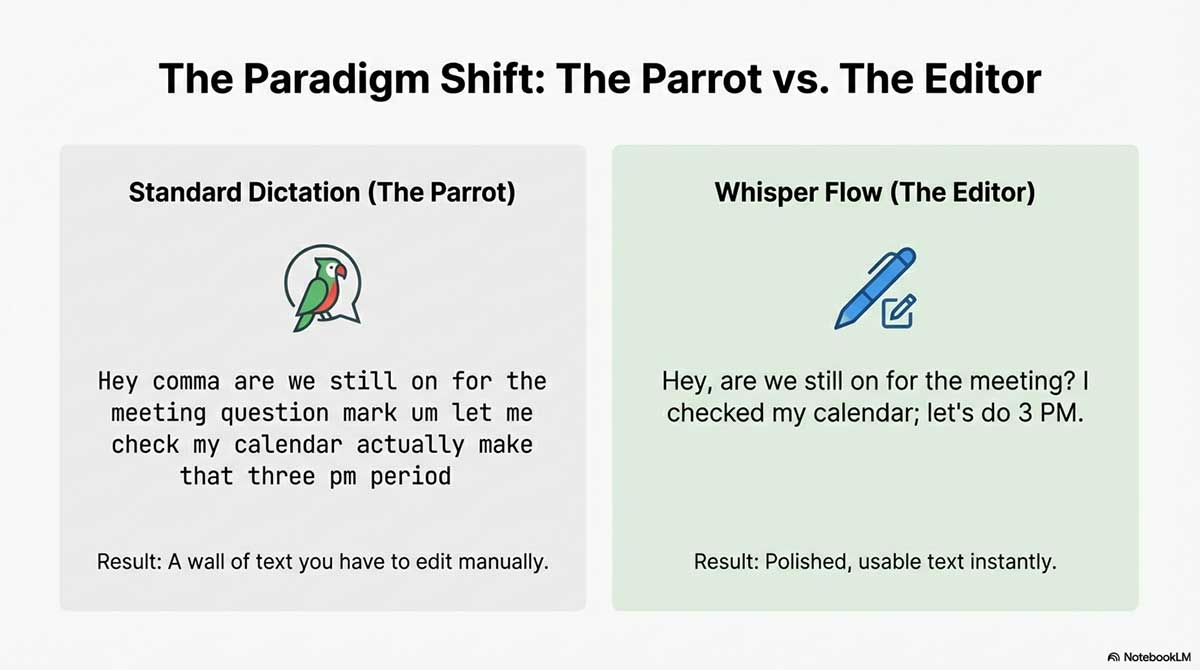
Standard dictation is like that friend who repeats every story you tell word for word, including the part where you forgot what you were saying.
Whisperflow is more like the friend who says, “Here is what you meant,” and makes you sound smarter than you felt five seconds ago.
Standard dictation tends to:
- capture every filler word
- force you to speak punctuation like a robot (comma, period, new line)
- create a wall of text that still needs editing
- struggle with names, niche terms, and brand spellings
Whisperflow tries to:
- let you speak naturally
- clean the ramble into readable writing
- apply punctuation and formatting without you narrating punctuation marks
- adapt to your context
Chris highlights a key idea: it behaves differently depending on the app.
- In email, it formats like email writing.
- In Slack or chat, it keeps things shorter and more casual.
- In documents, it behaves like a document writer.
- In AI prompt boxes, it tends to keep blocks structured in a prompt-friendly way.
That app awareness is what makes it feel “native” instead of “yet another dictation box.”
Quick start: how to install Whisperflow
Chris points people to trywisper.com to download the app.
Platforms discussed in the training
Mac: supported
Windows: supported
iPhone: available
Android: waitlist (and yes, a lot of people are waiting)
After install:
Whisperflow runs in the background
you trigger it with a hotkey
you can dictate in any app where your cursor is active
The win here is that you do not change your workflow. You just replace typing with talking, which is the dream.
If you want the “no guessing” setup (best hotkey, best first snippets, best style presets), peek inside AIville where people share the exact configurations they’re using. It’s basically a cheat sheet library for your future self, minus the suffering.
The best first setting to change: Privacy Mode
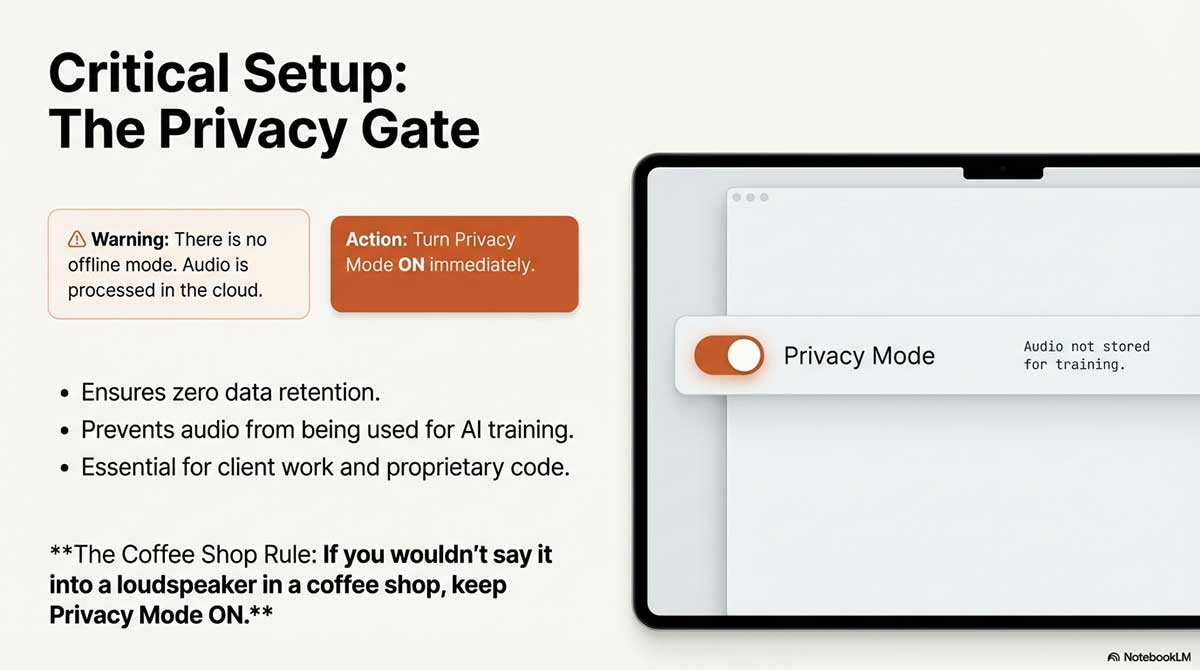
This matters more than most people want it to matter, but it matters.
Chris explains that:
- there is no offline mode
- audio goes to the cloud
- without privacy mode, your dictation may be used for training
If you are the kind of person who dictates client details, private notes, or anything you would not want living forever in a mystery database, do this first.
What to do
- Open Whisperflow
- Go to Settings
- Turn Privacy Mode ON if you want the “zero data retention” behavior described
A simple rule:
If you would not say it into a loudspeaker in a coffee shop, turn privacy mode on.
Setup: hotkeys, whisper mode, and how to dictate anywhere

Whisperflow uses a trigger key. Chris mentions a couple ways people set it up:
- press and hold a key to dictate
- double tap a key to keep it listening, then tap again to stop
The goal is simple: it must become automatic. If you have to think about the hotkey, you will type instead, and then you will be sad, and then your keyboard wins.
Whisper mode
Chris also mentions whisper mode, which is exactly what it sounds like. You can whisper and still get good text, which is useful in:
- quiet rooms
- shared offices
- late-night work sessions
- anywhere you want to write without announcing your inner monologue to the universe
If you have ever tried normal dictation quietly, you know it turns into interpretive poetry. Whisper mode is supposed to fix that.
Personal dictionary: teach it your words
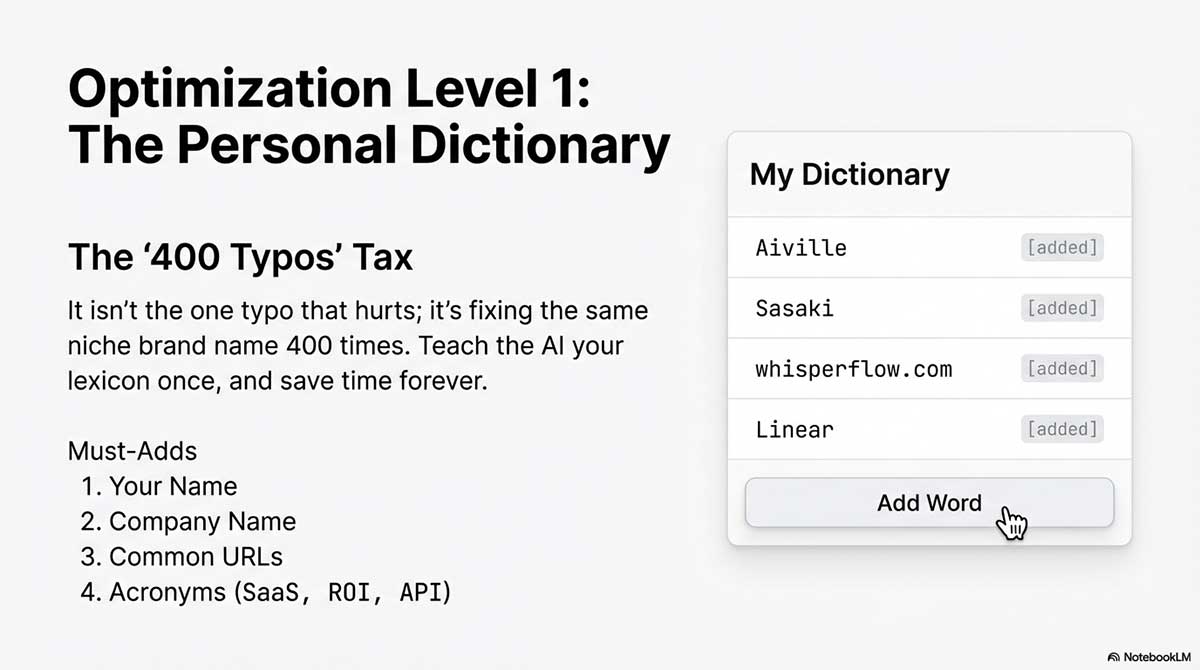
If you write online, you have words that dictation tools consistently mess up:
- uncommon names
- brands
- website domains
- acronyms
- technical terms
Chris points out a dictionary feature where you add terms so Whisperflow spells them correctly every time.
This is one of those boring features that becomes a superpower when you use it.
Because the real pain is not one typo.
It is the same typo 400 times.
Start with 10 entries:
- your name
- your company
- your favorite tools
- your common URLs
- the weird client name that always gets butchered
Your future self will thank you.
Snippets: speak one word, paste a whole block

This is where Whisperflow starts to feel like automation without the engineering degree.
Snippets let you say a short trigger phrase and it expands into something longer, like:
- your calendar link
- your email signature
- your common customer support reply
- a recurring AI prompt template
- your standard intro for outreach
Example concept:
You say: a simple “calendar link” trigger.
It outputs: your full scheduling sentence and URL, neatly formatted, ready to go.
Once you build 10 to 20 snippets, you stop typing the same chunks forever. Your keyboard goes from “full-time employee” to “part-time intern.”
If you want a fun challenge, open your sent email folder and look for the sentence you’ve typed 97 times. You know the one. Now imagine replacing that entire paragraph with a single spoken trigger.
That is snippets.
And this is also where checking out AIville pays off. Snippets are one of those features that get exponentially better when you steal other people’s ideas. Inside AIville, Chris’s community tends to share snippet setups the way chefs share spice blends: short triggers that instantly drop in prompts, disclaimers, outreach intros, and reusable blocks that save hours over a month. If you want Whisperflow to go from “cool” to “I can’t believe I lived without this,” AIville is the shortcut to the best snippet ideas and real-world workflows.
Styles: make it write differently in different apps

Chris explains that Whisperflow can be trained to match your tone depending on the platform.
Because you do not write the same way everywhere:
LinkedIn you might be more polished
Slack you might be short and casual
emails you might want crisp structure
prompts you might want clarity and bulleting
Whisperflow lets you set different “styles” so it behaves differently per context.
This is huge because the biggest dictation problem is not transcription.
It is mismatch.
If your dictated email reads like a chaotic chat message, you will end up editing anyway, and then you are back to typing, and then your keyboard laughs.
Command Mode: rewrite text by talking (Pro feature)
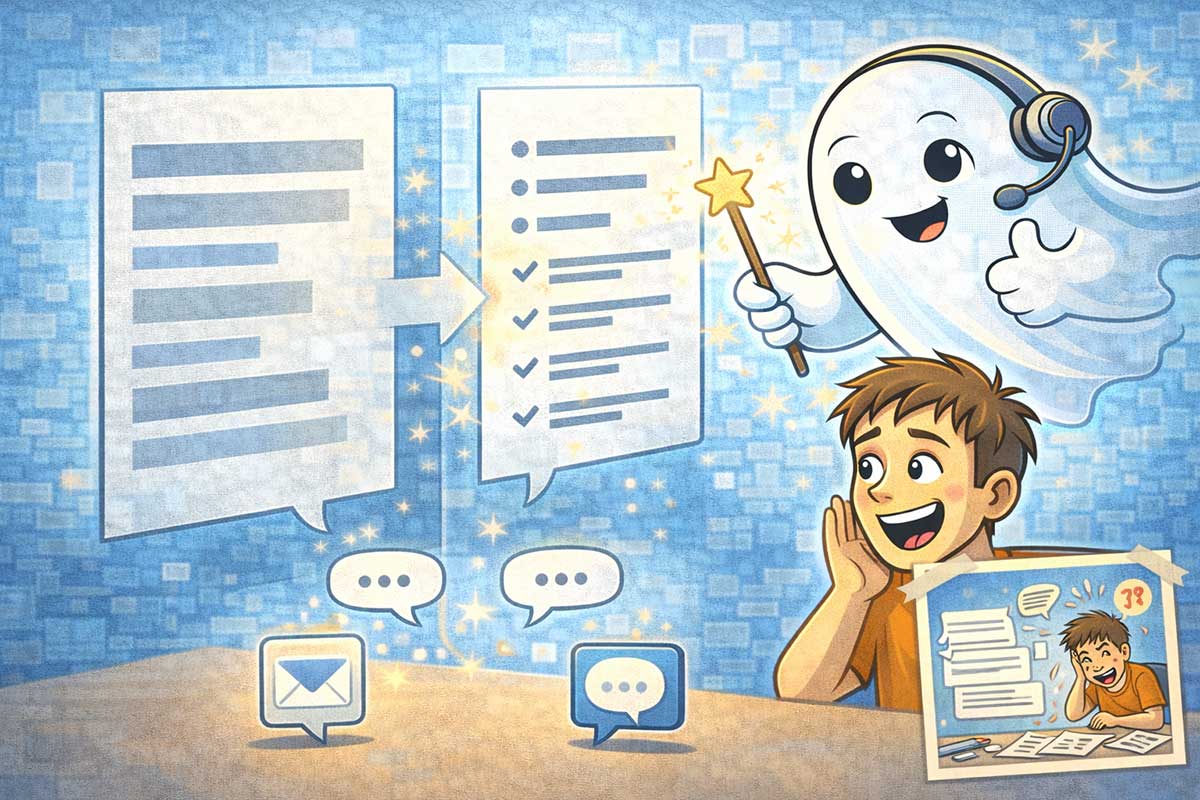
This is the feature that makes people stop and say, “Wait, what?”
Chris describes a mode where you highlight any text on your screen and tell Whisperflow what to do, like:
- summarize this paragraph
- make this more professional
- turn this into a bullet list
Then it rewrites the text instantly in place.
Across any app.
That means you can edit without switching tools:
- no copying into another AI
- no bouncing between windows
- no weird formatting issues after paste
If you live inside Gmail, Docs, Slack, or content tools all day, this is where Whisperflow becomes less like dictation and more like a writing assistant that lives everywhere.
The timeline feature: it remembers what you dictated

Chris mentions that Whisperflow keeps a timeline of what you used it for across apps.
That means you can:
- find past dictations
- copy prompts you said earlier
- revisit and reuse what you spoke
- add words from previous dictations into your dictionary
This is useful, but it also circles back to privacy.
If you like the convenience but want to be cautious, your first move is still privacy mode.
Pricing: free vs Pro vs team

Chris breaks pricing down like this.
Free plan
- 2,000 words per week
- around 8,000 words per month
This is enough to test whether it fits your life.
Pro plan
- around $12 per month billed yearly
- around $15 per month billed monthly
- unlimited words
- command mode included
- 14-day Pro trial mentioned
Student discount
- around $10 per month (as described)
Team plan
- around $10 per user per month billed yearly (as described)
Enterprise
- SSO and compliance options
A simple way to decide:
If you only dictate occasionally, free is fine.
If you want to replace typing, Pro is the real product.
Who Whisperflow is for

Chris gives a list that is basically every person whose hands have ever touched a keyboard:
- Writers drafting thousands of words
- Developers dictating documentation and notes
- Business people buried in email
- Students writing papers
- Customer support agents handling tickets
- Sales teams living in inboxes
- Freelancers who bill by output, not hours
- Anyone with carpal tunnel, arthritis, or just tired hands
- People who want to type less and live more
A simple filter:
If you type a lot, this helps a lot.
If you do not type much, you will not care.
The fastest way to get value in 30 minutes
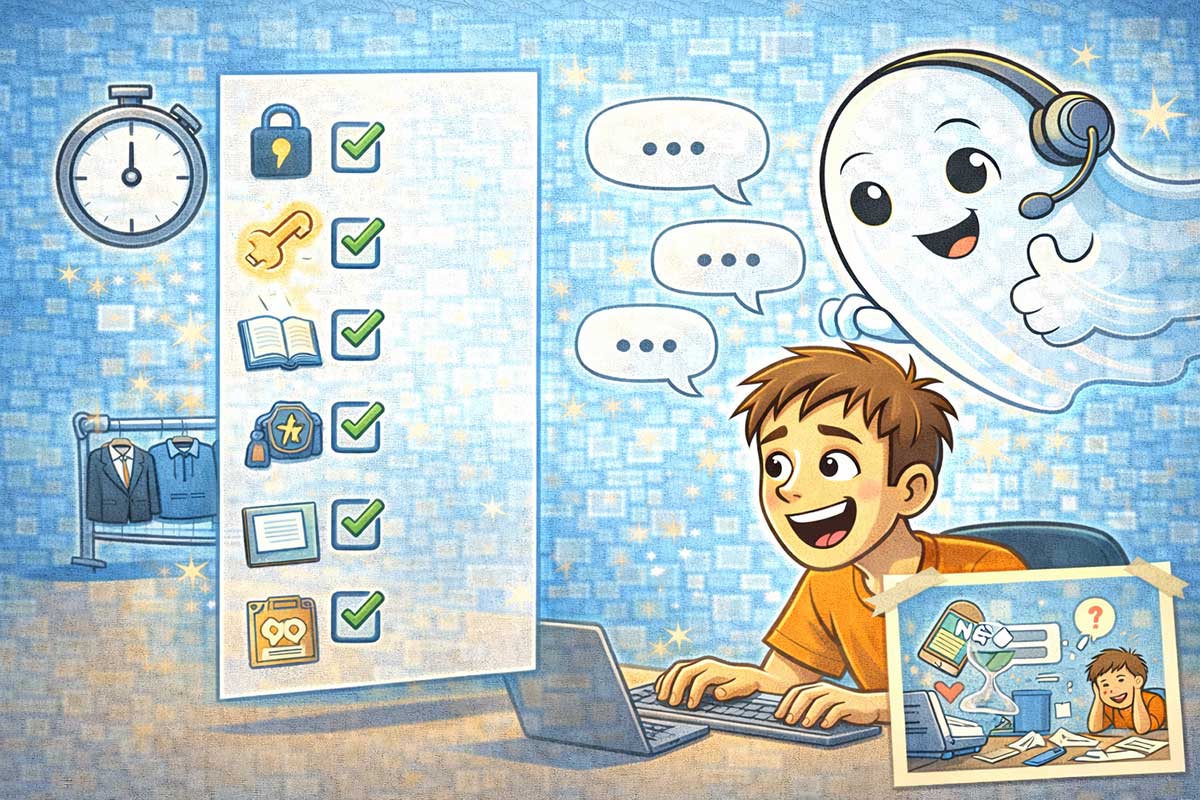
If you want the quickest payoff, do this:
- Install Whisperflow
- Decide on privacy mode and set it
- Set your hotkey so it feels effortless
- Add 10 dictionary words that matter to you
- Create 5 snippets you already type every week
- Use it for one real task today:
- reply to emails
- write a Slack update
- draft a Google Doc
- dictate a long AI prompt
Then you will know if it sticks.
If you want one extra productivity trick from Chris’s own workflow: use Whisperflow on your phone to dictate prompts into ChatGPT. The cleaned prompts usually come out sharper because the filler gets removed and the structure tightens automatically.
Your phone becomes a prompt machine, and you do not even need thumbs.
Final thoughts

Whisperflow looks like a simple tool. Chris is right about that.
But it is the kind of simple that compounds because it attacks the daily tax you pay without noticing: typing.
If you are already living in prompts, email, and chat, it is not just a convenience. It is a momentum tool. And momentum is what actually wins online, not another to-do list you ignore.
Try it free. Set your hotkey. Add a few dictionary terms. Build a couple snippets. Use it on one real task today.
If you feel even 10 percent faster, you will suddenly look at your keyboard the way people look at fax machines. Respectfully, but from a distance.
And if you like this training style, real tools, real settings, real workflows, and practical “use it today” guidance, then that is exactly the larger value Chris builds inside AIville. These live tutorials are basically the front porch. Inside, you get the full library, more workflows, and a community of people who are actually using these tools daily and sharing what works.
Leave a Reply